Projects
A project groups what you run and who may use it. It runs in one location, with its own quota there. Owners and admins find every project in the organization's Settings → Projects; each project's own Settings has the tabs General, Consoles and CLI and Danger zone.
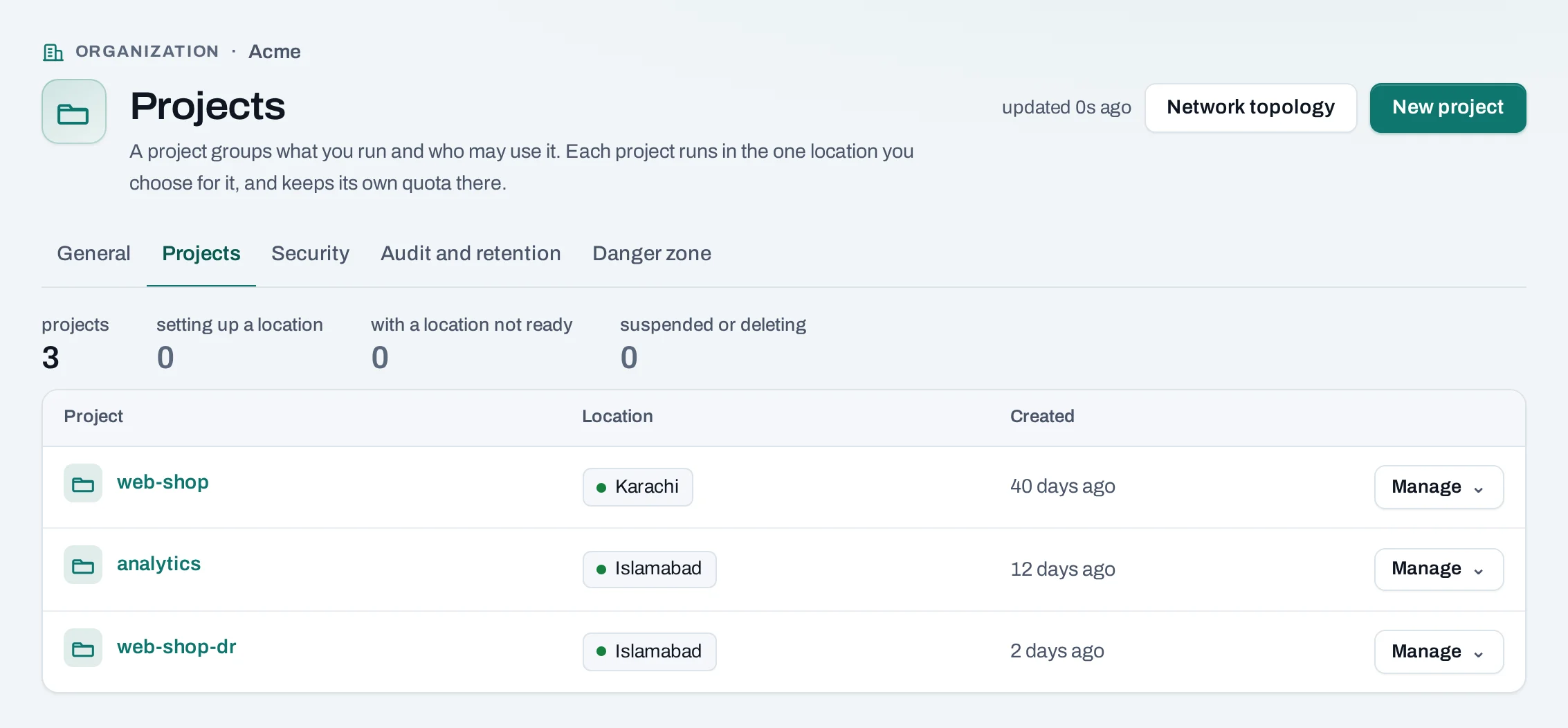
To create one, see Create a project.
The projects list
Settings → Projects lists every project with its location and state. A location still setting up, or not ready, says so beside the project. From a project's Manage menu:
- Edit quotas: owners and admins; see Quota.
- Open project: the project itself, as the scope selector does.
- Copy ID.
- Delete project: see below.
Choose a project's name for its settings, General and Danger zone, without leaving the organization.
Who can use a project
An organization role alone does not let anyone use a project's resources. People and service accounts use a project through a project role.
| Project role | What it allows |
|---|---|
| Project admin | Everything a member can, plus giving and taking access, deleting the project, sharing SSH keys and cancelling operations |
| Project member | Create, change and delete instances, networks, volumes and the rest |
| Project reader | See everything in the project, change nothing |
To give access:
- In the project, open IAM → People.
- Choose Give access, pick a person and a role, and confirm.
A service account is given access on its own page: see Service accounts.
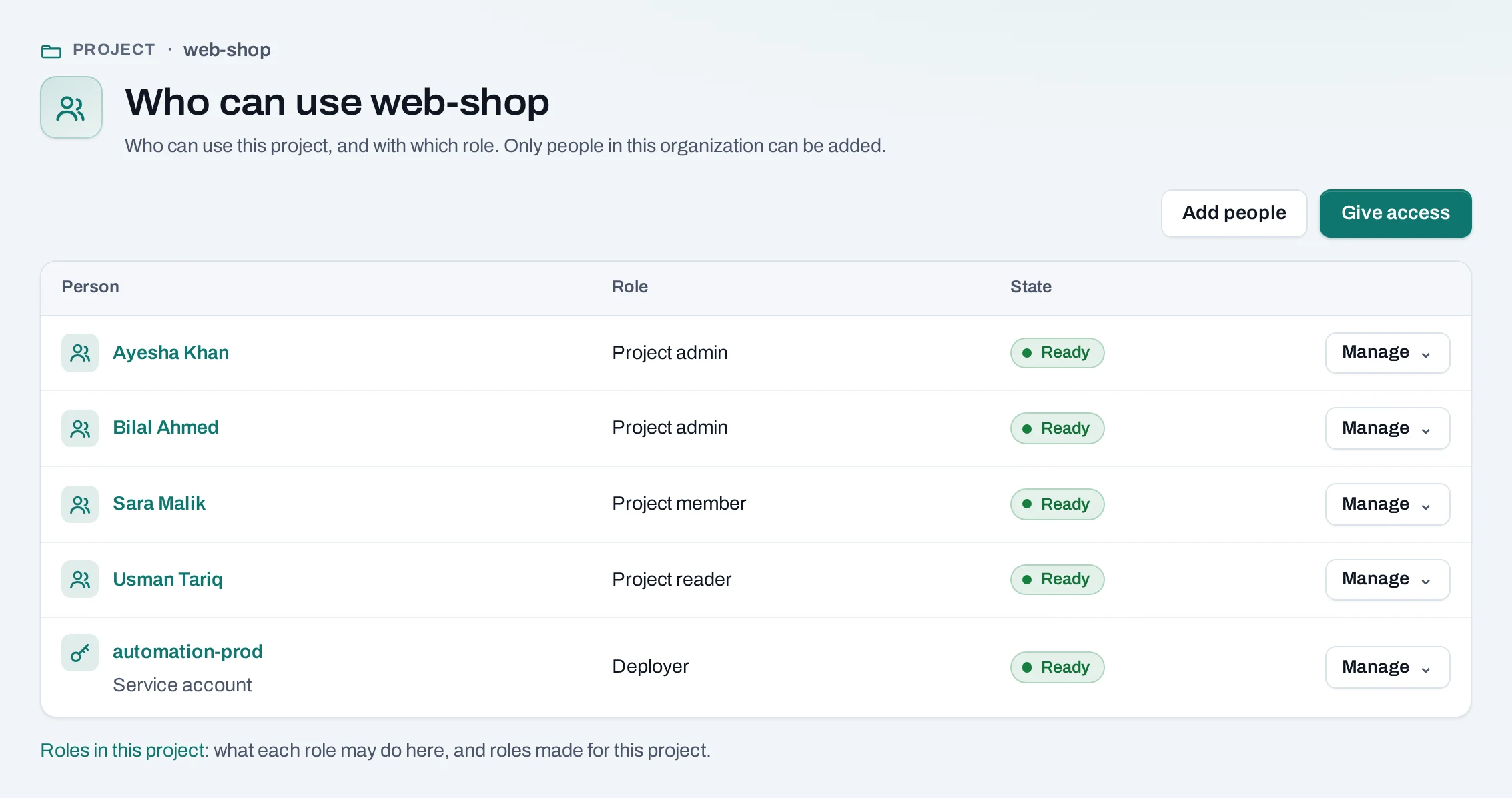
The role reaches the project's location within a few minutes; the State column says when it has. From a row's Manage menu, Change access gives another role in one change, and Remove access takes it away. What they made stays. Owners and admins also see Add people, to invite someone who is not in the organization yet with a role on this project.
Roles in this project, under the list, shows what each role may do there and the custom roles made for this project.
Delete a project
Project admins, owners and admins delete projects from the project's Settings → Danger zone, or with Delete project in Settings → Projects.
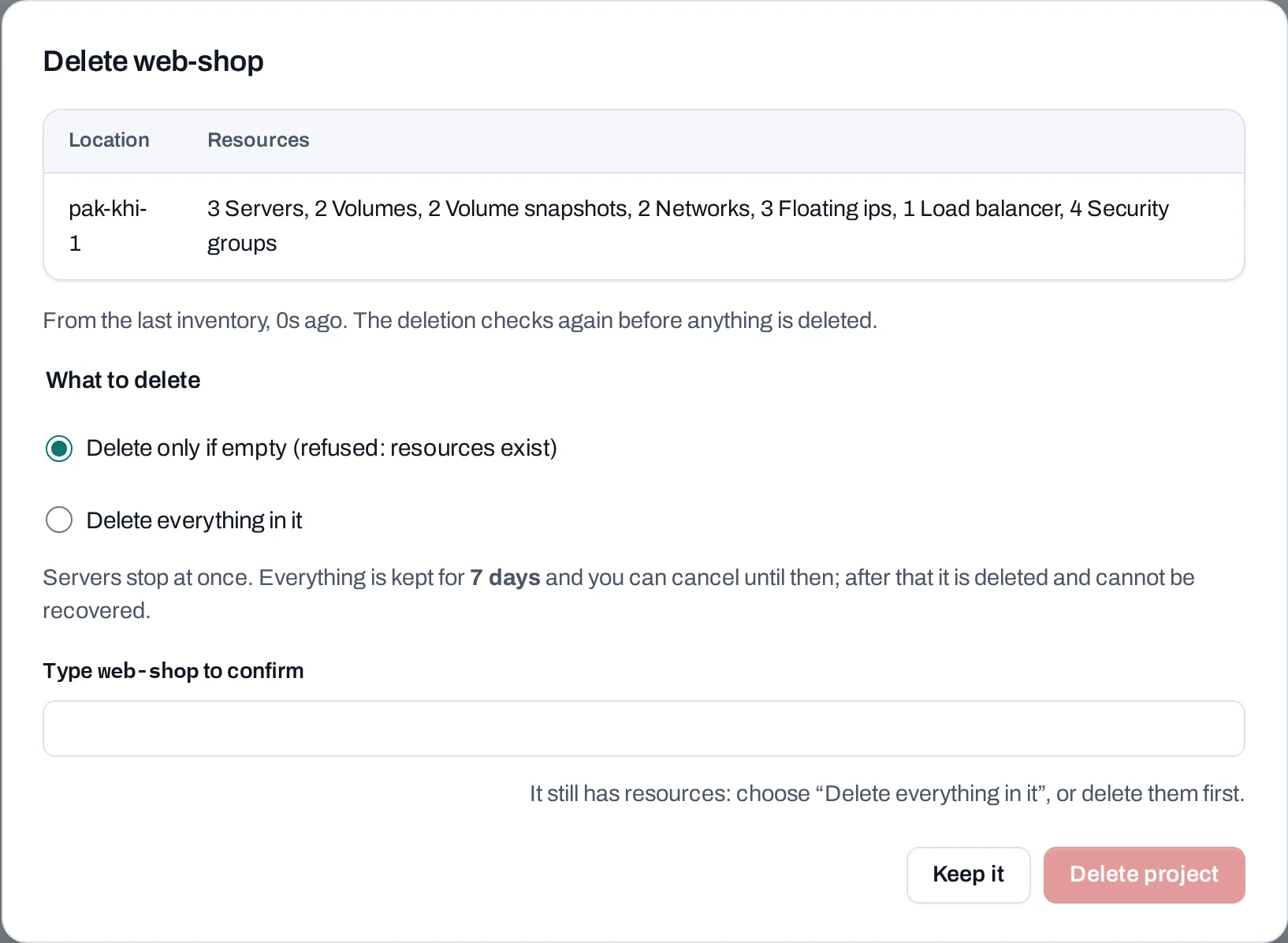
- Choose Delete project. The dialog lists what the project holds.
- What to delete:
- Delete only if empty: refused while anything is left.
- Delete everything in it: instances, load balancers, public IPs, routers, networks and security groups go within minutes. Volumes, snapshots and images are kept for the recovery period.
- Type the project's name and choose Delete project.
During the recovery period (7 days unless NubeStack agreed another with you):
- the project is suspended: nothing new can be made in it;
- Cancel deletion stops it. The project stays suspended until a project admin chooses Resume project. After Delete everything, only volumes, snapshots and images come back;
- Delete now ends the period early. You may be asked to sign in again with your second factor.
When the period ends, everything left is deleted. Once that has started, it cannot be cancelled. If something stops it, such as a resource made with the location's own tools that cannot be deleted for you, the page names it and why. See Deletion and retention.
What blocks a delete
| Refusal | Why | Resolve |
|---|---|---|
| Delete only if empty, and something is left | The project still holds resources | Delete them, or choose Delete everything in it |
second_factor_required |
Deleting everything, or deleting now, asks for your second factor | Sign in again with your authenticator app |
Through the API
A service account's API key cannot create or delete projects. With a role that allows it, it can read projects and manage what is inside them. People can create projects with the NubeStack CLI signed in as themselves; deleting one is done in the console.