Sign up and sign in
NubeStack Cloud is open by invitation. Someone in your organization, or NubeStack when your organization is new, invites you by e-mail address, and you create your account from that invitation.
Accept your invitation
The invitation comes as a link, by e-mail or from the person who invited you. The link works once, only for the e-mail address it was sent to, and for seven days.
-
Open the link. If you are not signed in, the page offers two ways on.
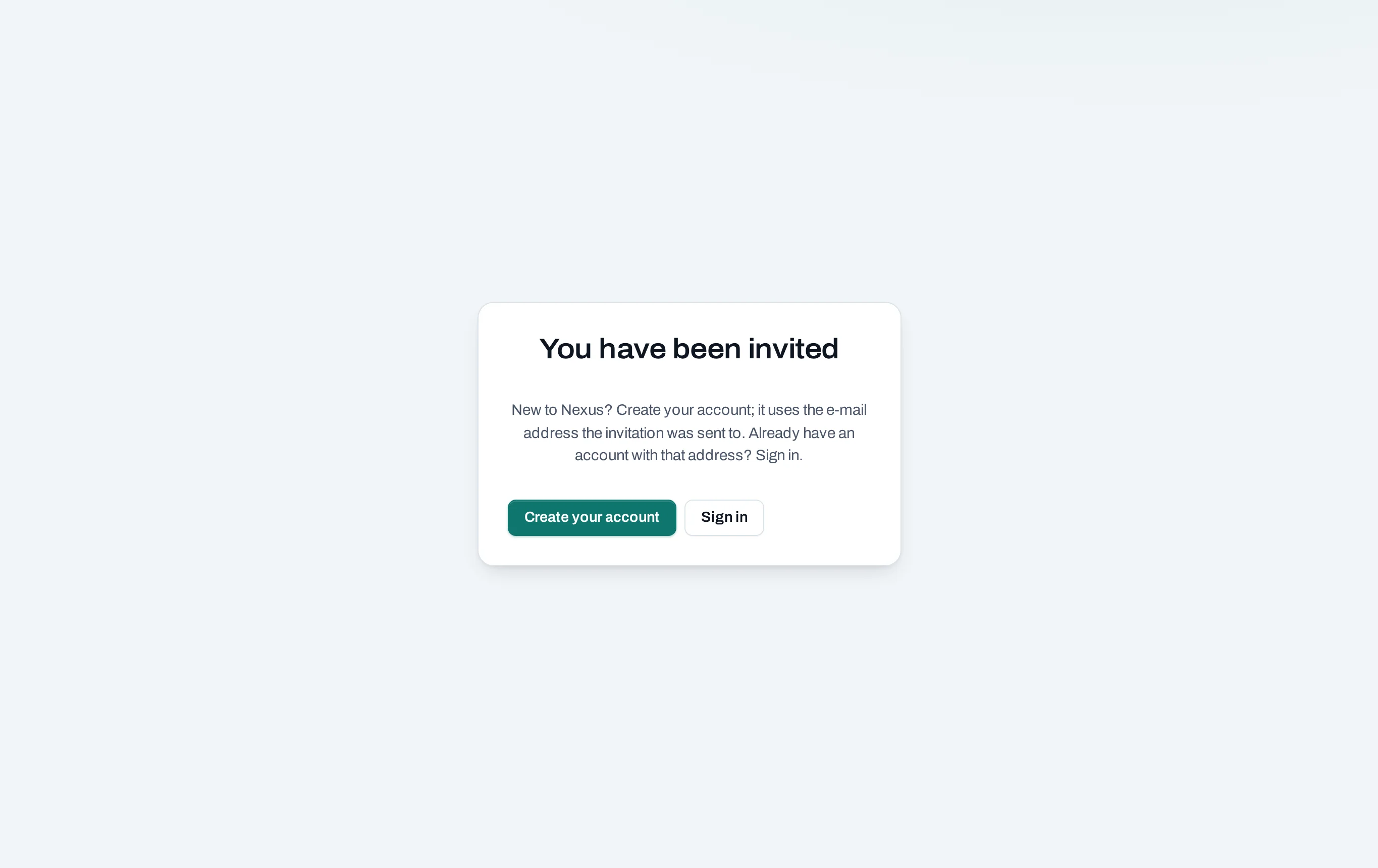
The invitation page for someone not signed in, with Create your account and Sign in -
New to NubeStack Cloud? Choose Create your account and choose a password. Your account uses the e-mail address the invitation was sent to.
Already have an account with that address, for another organization? Choose Sign in.
-
Set up your second factor when asked: scan the code with an authenticator app on your phone, then type the six-digit code it shows.
-
Check the organization and the role you are offered, then choose Accept invitation. For an owner or admin role you may be asked to sign in again with your second factor.
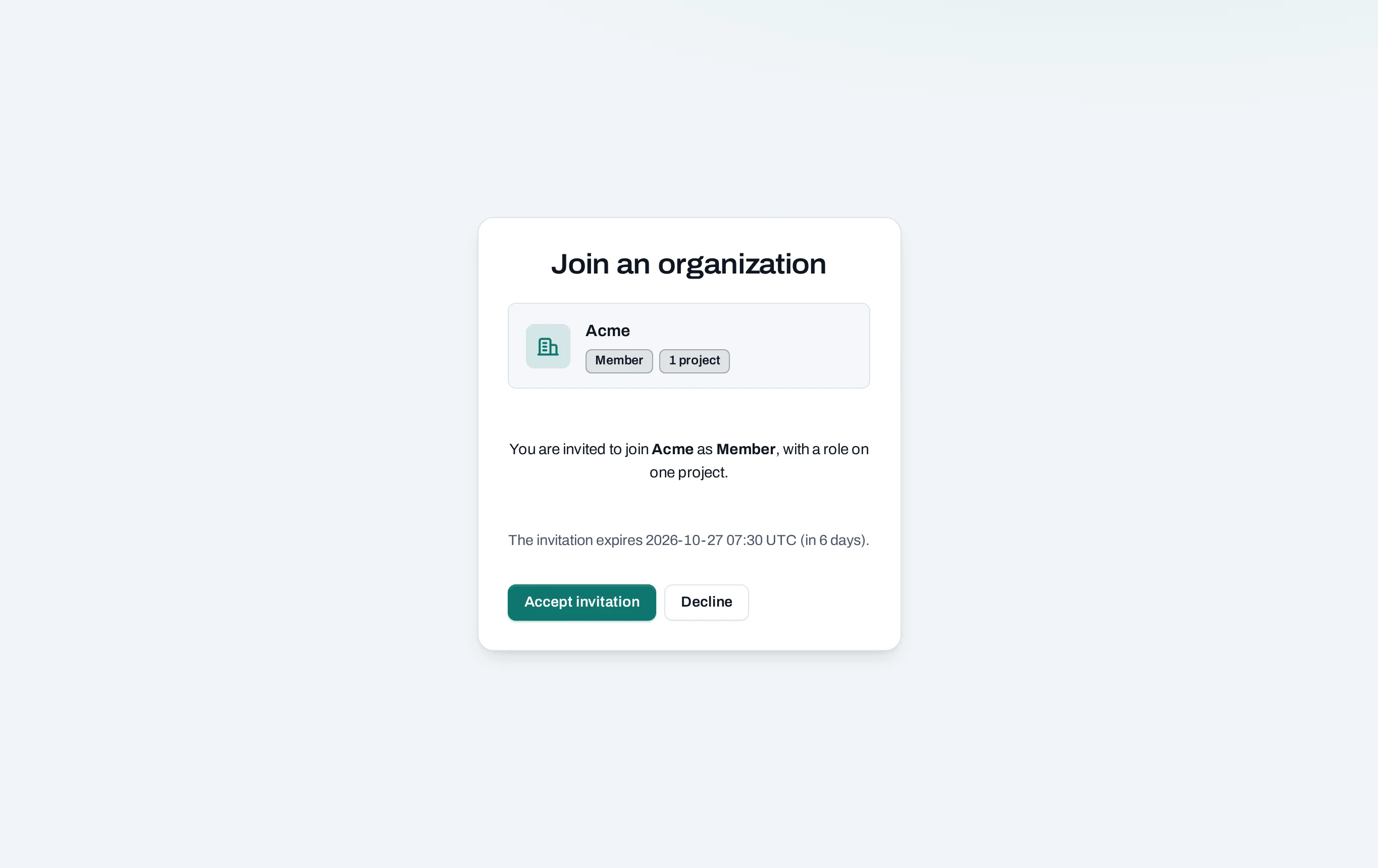
The invitation, signed in: Acme offers the Member role with a role on one project
Decline turns the invitation down. The person who invited you can send a new one later.
The page says Invitation not valid
The link was used, replaced or has expired. Ask the person who invited you for a new one. If you are signed in with another address than the one invited, choose Sign out, sign in with the invited address and open the link again.
Sign in
Open the console and sign in with your e-mail address and password. You are asked for your second factor:
- always, if you are an owner or admin of the organization;
- always, when you sign in to a location's Horizon dashboard or the OpenStack CLI;
- when your organization requires it for every member.
Second factor explains each case.
If you belong to several organizations, the console asks which one to open. Leave Open this one next time ticked to skip the question from then on. Switch at any time with the organization selector at the top left of every page.
What you see first depends on your role. Owners and admins land on the organization's Overview: projects, budgets and anything waiting on someone. Everyone else lands on the list of projects; choose one in the scope selector at the top to work in it.
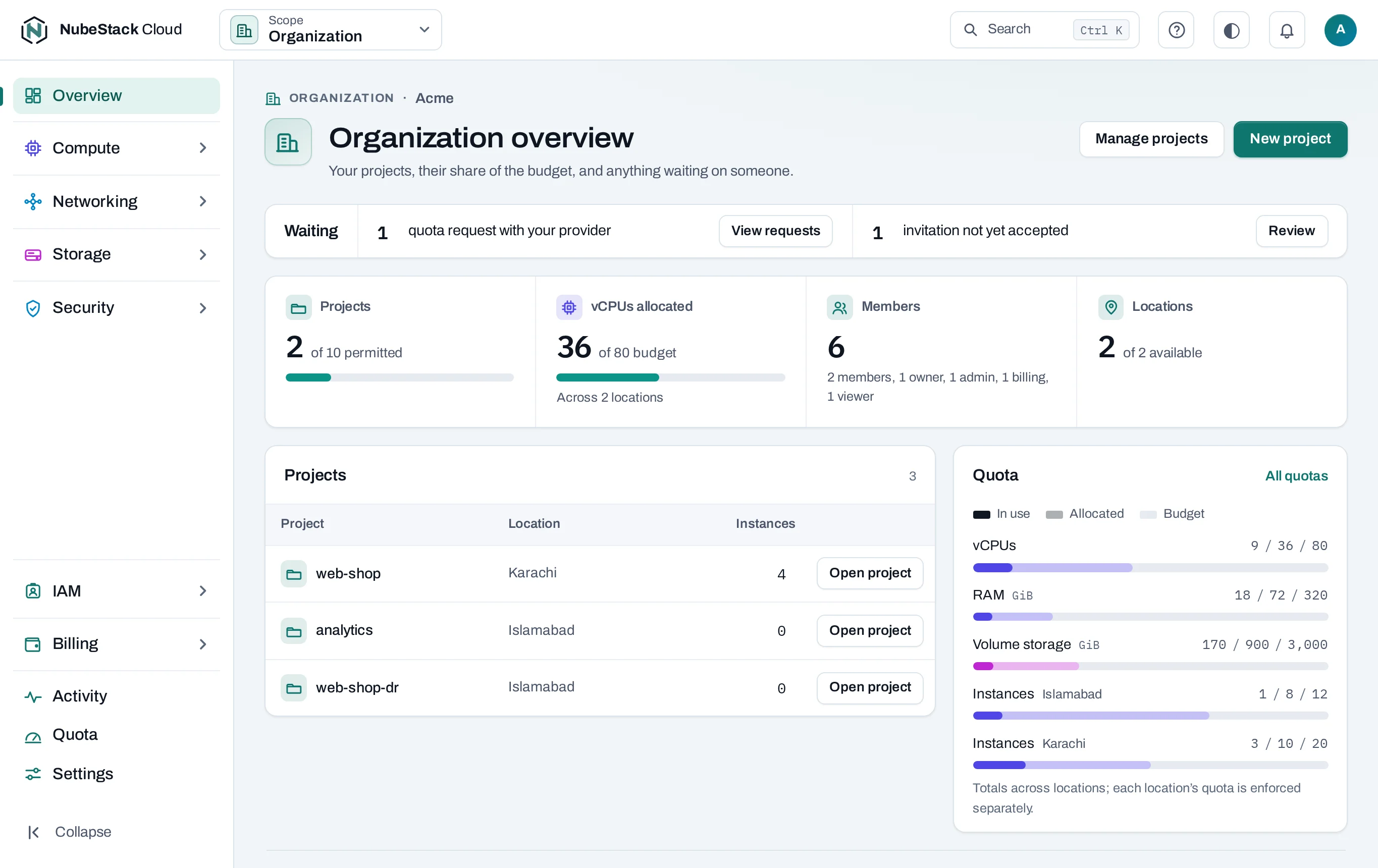
Change your password or second factor
Choose your initial at the top right of the console, then Password and sign-in. Your account page opens in a new tab; change your password or your authenticator app there.
Lost your password or your phone
There is no self-service reset yet. Contact NubeStack support. Support sends you a one-time reset link: opening it signs you in once, your old password and second factor stop working, and you set new ones.