Instances
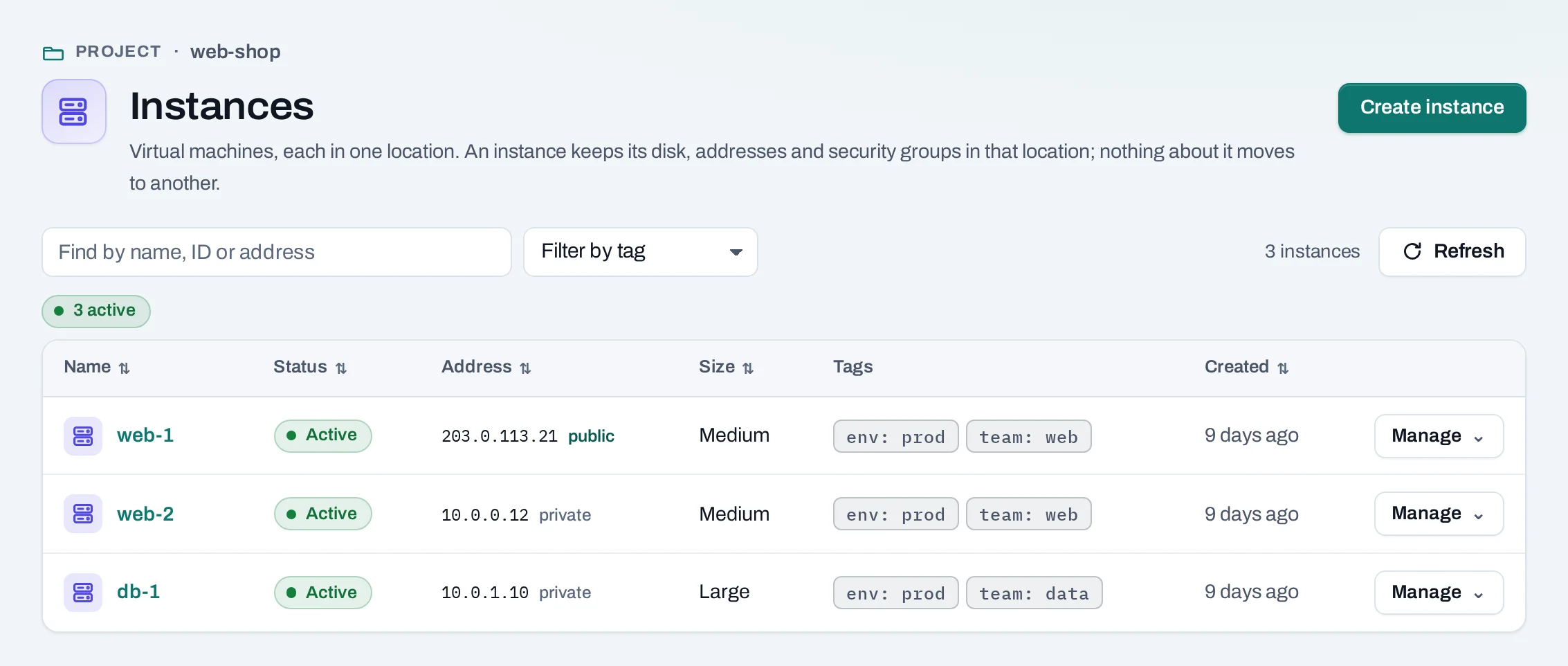
An instance is a virtual machine in your project's location. It keeps its disk, its addresses and its security groups there; nothing about it moves to another location.
Use it for anything you would run on a server: web and application servers, databases, build agents, batch jobs. To start several alike, use a launch template; to keep a number of them running, an instance group.
Find instances in a project under Compute → Instances.
Before you start
- A role of project admin or project member. Project readers, and organization owners, admins and viewers, can see instances but not create them.
- A network. The project's first network is made for you when the project is created.
- An SSH key, to log in to a Linux instance.
- For a public IP, an Internet gateway in the project.
Create an instance
Choose Create instance. The summary on the right says what will be made, what the project's quota will be afterwards and, for owners, admins and the billing role, the price estimate per hour or per month.
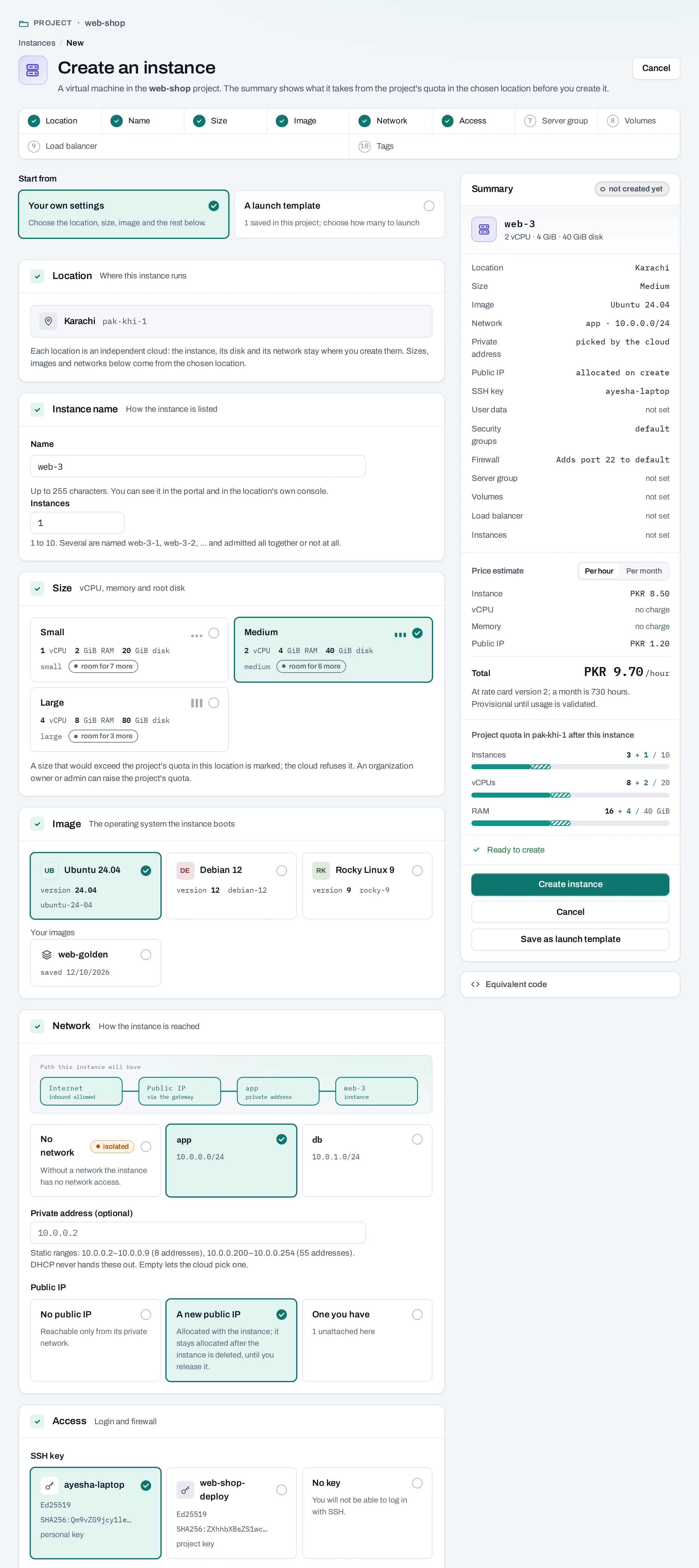
- Start from: your own settings, or a launch template.
- Location: the project's location, shown for reference. Sizes, images and networks below come from it.
- Instance name: up to 255 characters. It is also the name in the location's own
tools, and you can rename it later. Instances, beside it, starts one to ten at once,
named
name-1,name-2and so on. - Size: vCPUs, memory and root disk, from the sizes the location offers. A size that would go over the project's quota is marked; the others say how many more fit. Change it later with Resize.
- Image: the operating system it starts from. The location's images come first; your own images follow under Your images.
- Network:
- One of the project's networks. Without a network, the instance has no network access at all.
- Private address (optional): leave it empty and the location picks one. A fixed address must come from a range the network keeps for static addresses; with DHCP off on the network, you must give one.
- Public IP: No public IP, A new public IP (allocated with the instance, and kept after it is deleted until you release it), or One you have (an unattached public IP of the project).
- Access:
- SSH key: the key copied into the instance. With No key you cannot log in with SSH.
- Firewall: the location's
defaultsecurity group is chosen to start with. Allow SSH (port 22) from anywhere and Allow web traffic (ports 80 and 443) from anywhere add the rules none of the chosen groups has yet, to the first group chosen. The page says which group gets which rule. - User data (cloud-init): a script or cloud-init document run at the first start, up to 49,149 bytes. It is not kept or shown again.
- Server group (optional): a server group, to keep the instance on a different host from the group's others, or on the same one. It cannot change later.
- Volumes (optional): up to 8 data disks, existing available volumes or new empty ones, attached in the order listed once the instance runs.
- Load balancer (optional): a pool of one of the project's load balancers, and the port the instance serves on.
- Choose Create instance. Save as launch template keeps these settings for later,
and Equivalent code shows the same request as a
nexuscommand, Terraform orcurl.
The page shows Instance requested. The instance appears as Creating, then Active.
curl -sS -X POST "$NUBESTACK_API/v1/orgs/$ORG/projects/$PROJECT/servers" \
  -H "Authorization: Bearer $NUBESTACK_API_KEY" \
  -H "Idempotency-Key: $(uuidgen)" \
  -H "Content-Type: application/json" \
  -d '{
    "location": "loc_01jbkhi",
    "display_name": "web-3",
    "offering": "medium",
    "image": "ubuntu-24-04",
    "network_id": "net_01jbapp",
    "ssh_key_id": "ssh_01jbayesha",
    "security_group_ids": ["sgr_01jbweb"],
    "public_ip": true,
    "volumes": [{"new": {"display_name": "web-3-data", "size_gb": 20}}],
    "tags": {"env": "prod", "team": "web"}
  }'
location is the project's location (loc_…). offering and image are slugs from
GET /v1/orgs/$ORG/catalog?location=…. Other
fields: fixed_ip, public_ip_id (one you have), security_group_templates (ssh,
web), user_data (plain text), server_group_id and load_balancer
({pool_id, port}).
The answer is 202 Accepted with the operation and the new instance's id. To start
several at once, use POST …/instance-launches; see
Launch templates.
If a volume or the load balancer pool cannot be joined, the instance is kept and the operation says partially succeeded. Attach the volume or add the member afterwards.
Find an instance
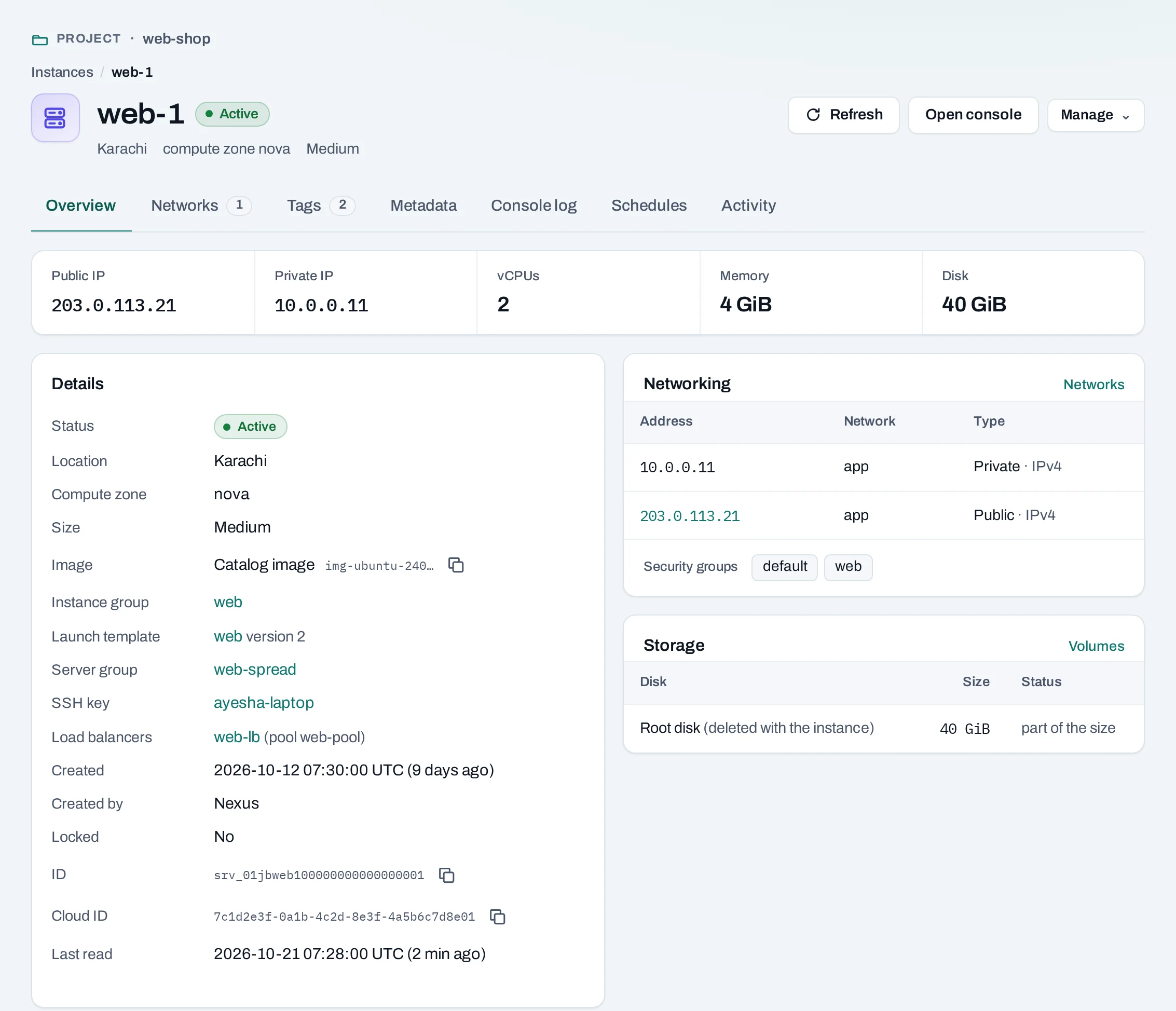
The list shows each instance's status, address, size and tags. Type in Find by name, ID or address, or filter by state or tag. Instances made with the location's own tools are listed too. In the organization scope, Instances lists every project's, read-only, with the project each is in.
Open an instance for its page: Overview, Networks, Tags, Metadata, Console log, Schedules and Activity.
curl -sS "$NUBESTACK_API/v1/orgs/$ORG/projects/$PROJECT/servers?tag=env:prod" \
  -H "Authorization: Bearer $NUBESTACK_API_KEY"
Read one with GET …/servers/{server_id}, and what it is connected to with
GET …/servers/{server_id}/related. Lists are paged; see Requests.
How instances connect
| Connected to | How |
|---|---|
| Networks | One at creation; more with Attach network |
| Security groups | Chosen at creation; changed with Manage → Security groups |
| Public IPs | At creation, or Manage → Add public IP |
| Volumes | At creation, or Manage → Attach volume |
| Load balancers | At creation, or from the load balancer's Change members |
| Schedules | From the instance's Schedules tab |
Delete an instance
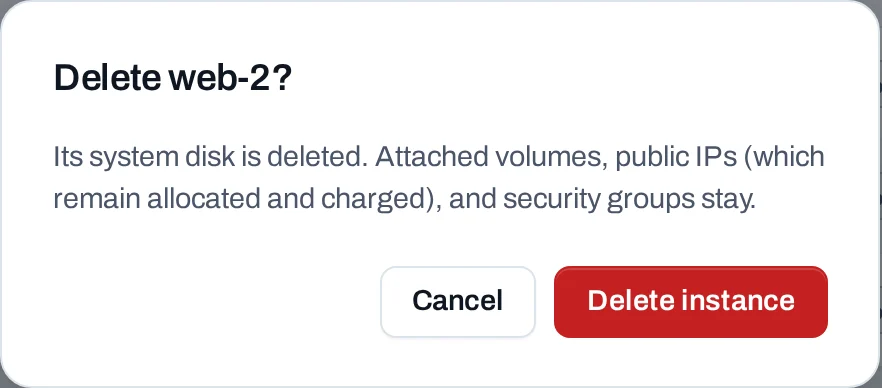
Choose Manage → Delete and confirm. Read the dialog: it names any volume the location is set to delete with the instance.
What goes with it and what stays:
- Goes: its system disk, its addresses on its networks, and volumes the location is set to delete with it.
- Stays: attached volumes otherwise, public IPs (still allocated and counted until you release them), and security groups.
- If it joined a load balancer pool when it was created, it is taken out of the pool first. Members you added on the load balancer are not touched.
What blocks a delete
| Refusal | Why | Resolve |
|---|---|---|
| The instance is locked | Lock stops every change | Manage → Unlock, then delete |
| A change is still running | The instance is creating, resizing or similar | Wait for its operation to finish |
Limits and good practice
- Up to 8 data volumes at creation, 10 security groups and 1 to 10 instances per request.
- User data up to 49,149 bytes. Keep secrets out of it where you can.
- Not offered: starting an instance from a volume, or moving one to another location or project. Save it as an image and start a new one from it.
- Keep data on volumes, not the system disk, so you can replace an instance without losing it.
- Tag instances (
env,team) to filter lists and break down costs.