Connect to an instance
How you and other systems reach an instance: SSH over the network, the browser console when the network fails, the console log to see why it will not start, and the networks, public IPs and security groups that decide what traffic gets through.
Log in with SSH
Log in as the image's default user, for example ubuntu on Ubuntu images, with the
SSH key you chose when you created the instance:
From the Internet you need the instance's public IP, a security group rule that allows TCP 22 from your address, and an Internet gateway in the project. From another instance on the same routed networks, use its private address.
Open the browser console
Open console on the instance's page gives you its screen and keyboard in your browser, as if a monitor were plugged in: for an instance you cannot reach over the network, or to watch it start.
- Choose Open console. The location prepares a console; this takes a few seconds.
- Choose Open console ↗. It opens in a new browser tab.
The link works once and only for a few minutes; do not share or bookmark it. The console closes after 10 minutes; choose Reconnect for a new one. Project admins and project members can open it while the instance is active or rescued.
Where a location does not offer the console here, use Console in Horizon on the instance's page. A program can open a console through the API with an API key that has the Open instance consoles permission; see Service accounts.
Read the console log
The Console log tab shows the last lines the instance printed: boot messages and whatever its system and programs wrote. Choose how many lines from the end (50 to 2,000), then Read log. At most the last 100 KB are shown, with Copy and Download.
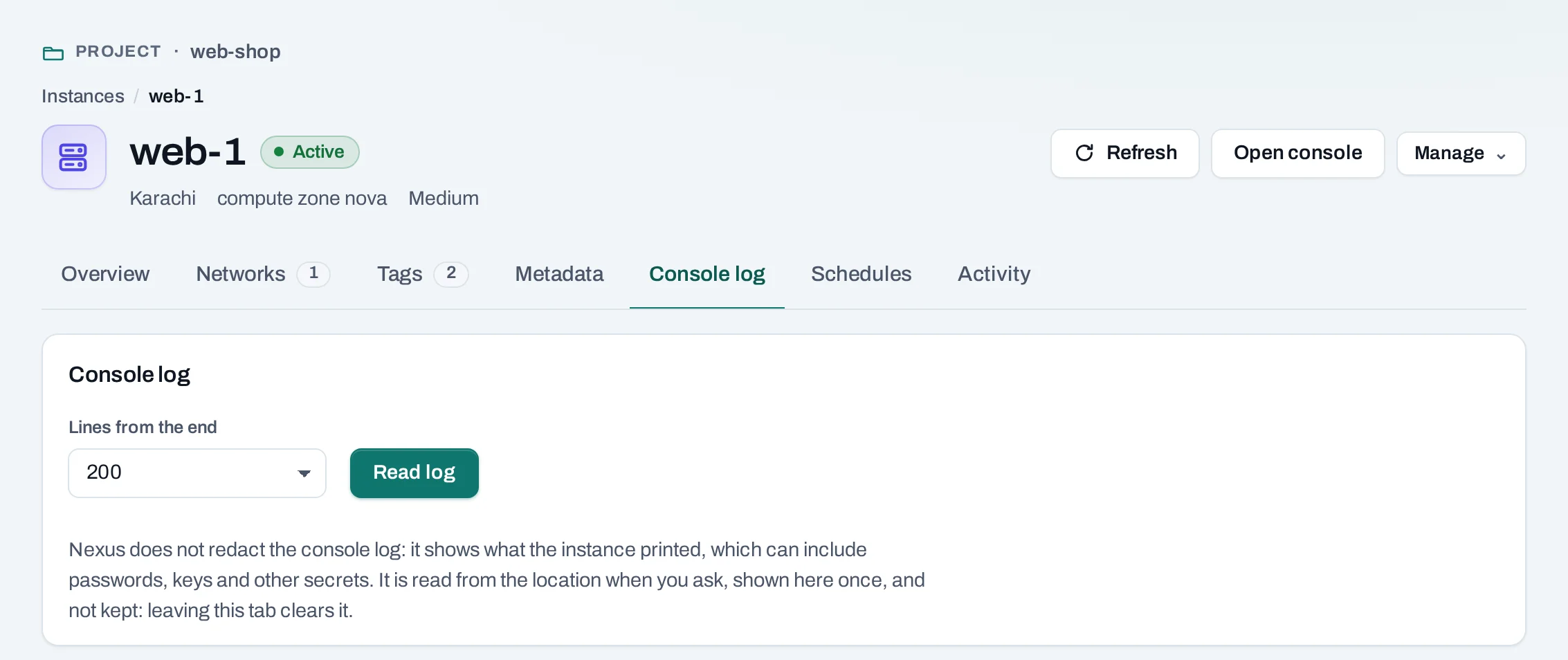
The log is available only while the instance runs or is rescued. It is shown as printed, not redacted, and can contain secrets such as host keys; it is not stored, and leaving the tab clears it.
Change its networks
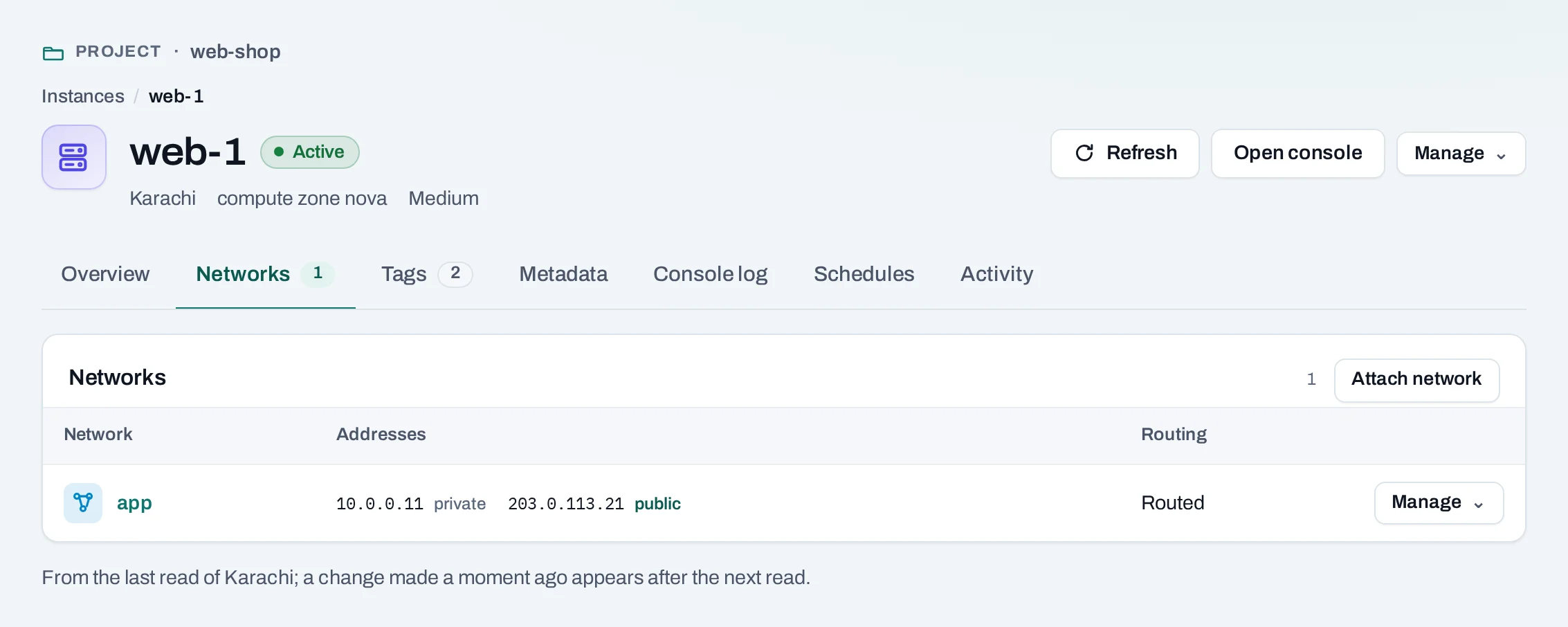
On the instance's Networks tab:
- Attach network gives the instance an address on another of the project's networks. If its system does not bring the new interface up by itself, bring it up inside the instance.
- Detach network removes that address at once; the network stays.
- Forwarding…, where the location offers it, lets an interface forward traffic for private ranges behind it, for example a VPN instance. See Routing.
Add or remove a public IP
Manage → Add public IP attaches a new or unattached address. Manage → Remove public IP detaches it; the address stays allocated to the project until you release it under Public IPs.
Change its security groups
Manage → Security groups chooses the groups the instance is in. Their rules apply on every network it is on. Choosing no groups means it accepts and sends nothing.
curl -sS -X POST "$NUBESTACK_API/v1/orgs/$ORG/projects/$PROJECT/servers/srv_01jbweb1:set-security-groups" \
  -H "Authorization: Bearer $NUBESTACK_API_KEY" \
  -H "Idempotency-Key: $(uuidgen)" \
  -H "Content-Type: application/json" \
  -d '{"security_group_ids": ["sgr_01jbdefault", "sgr_01jbweb"]}'
The list replaces the instance's groups.
Cannot connect?
Check, in this order:
- The instance is Active, and its Console log shows it finished starting.
- It has a public IP, or you connect from inside its networks.
- One of its security groups allows the port from your address.
- The project has an Internet gateway, and the network is routed.
- The service inside the instance listens on that port, and its own firewall allows it.
More in Troubleshooting.
Related
- Security groups · Public IPs
- Native access: the location's Horizon console and the OpenStack CLI