The console
The console shows one scope at a time: your organization, or one of its projects. You choose it at the top of the page. The menu on the left is the same in both; each entry shows what belongs to the scope you chose.
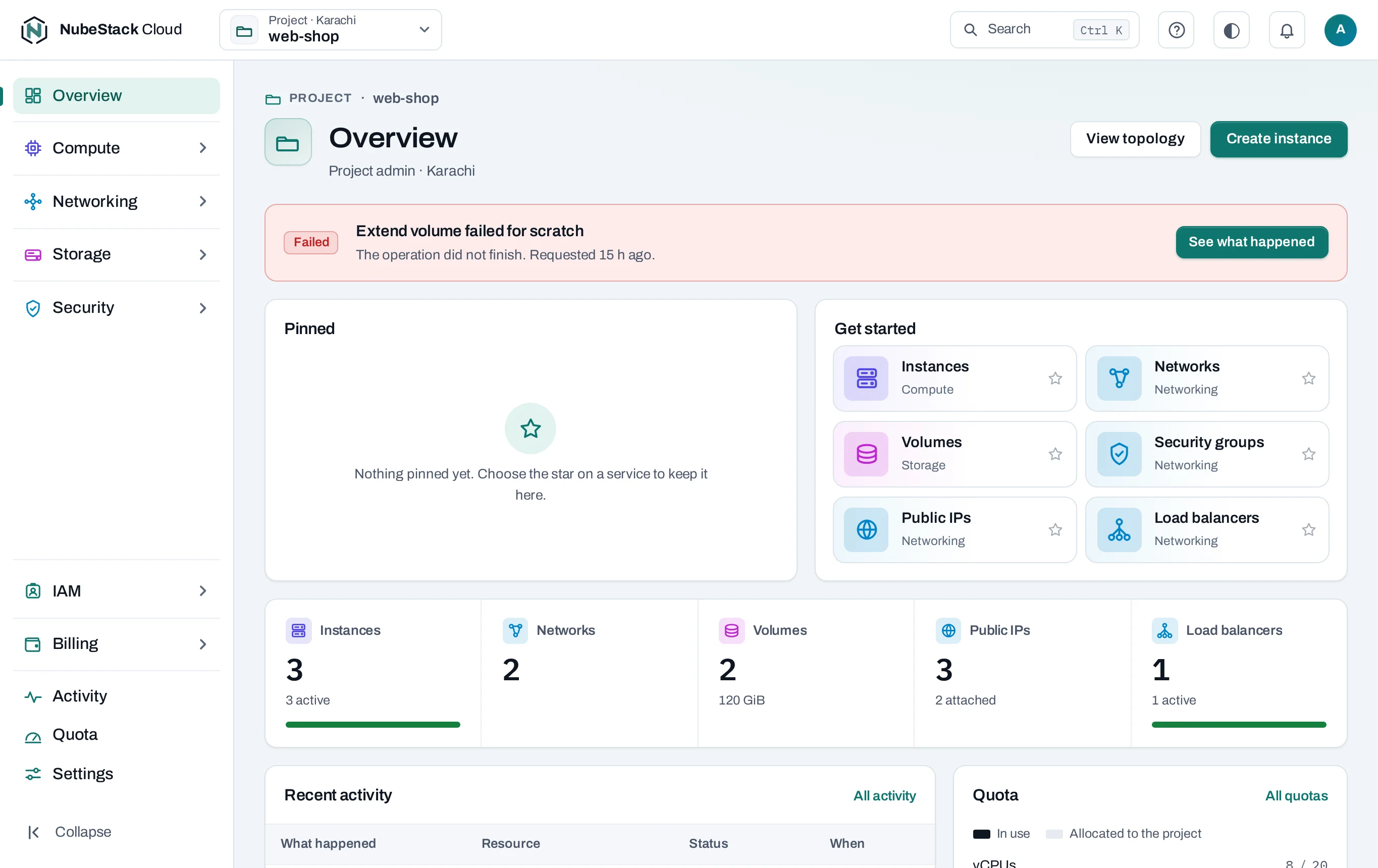
The top bar
From left to right:
- The logo takes you back to the scope you used last.
- The organization selector lists your organizations with your roles in each. It is there only if you belong to more than one.
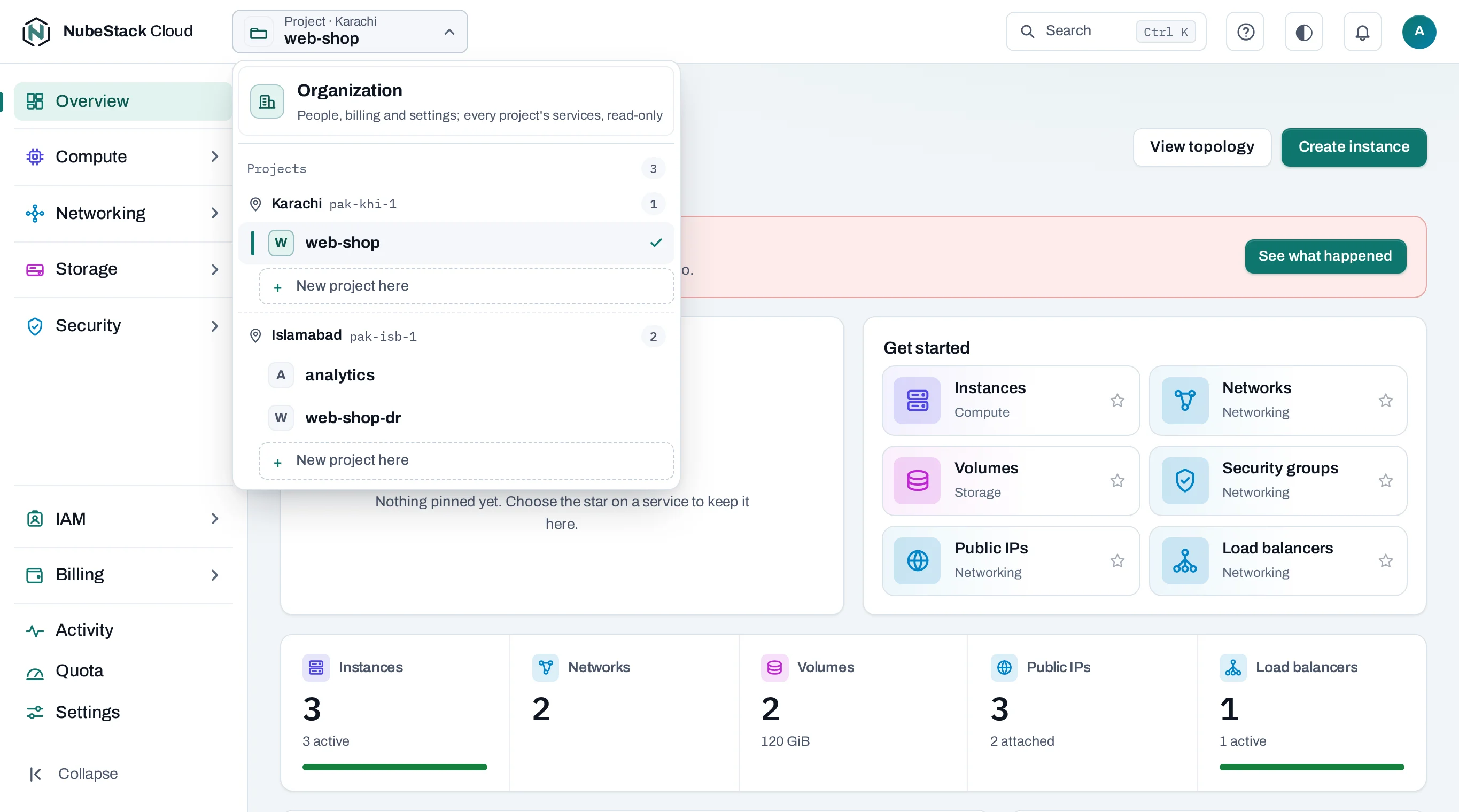
- The scope selector shows where you are: Organization, or Project · its location
over the project's name, such as Project · Karachi over
web-shop. Open it to switch:- Organization comes first, as a card of its own, for owners, admins and the billing role. Everyone else works in their projects and does not see it.
- Then Projects, under a heading for each location with its name, code and how many projects it has. The one you are in has a check mark. Above eight projects, type in Find a project.
- Each location ends with a dashed New project here row, for people who may create projects.
- Search (Ctrl+K, or Cmd+K on a Mac) goes to a page, opens a project or starts a create page.
- Help opens these docs, the API reference, the CLI page and the keyboard shortcuts.
- The theme icon switches between the light and dark theme.
- The bell keeps the warnings pages show, such as a quota nearly used up, after you close them.
- Your initial opens your menu: Password and sign-in, E-mail notices and Sign out.
The menu
The menu's entries never change. In a project you create and change things; in the organization you manage people, billing and settings, and see every project's resources read-only.
| Entry | In a project | In the organization |
|---|---|---|
| Overview | The project's resources, quota and recent activity | Projects by location, budgets and cost (owners and admins) |
| Compute, Networking, Storage, Security | The project's resources, to create and change | Every project's, read-only, each row naming its project |
| IAM → People | Who can use the project, and with which role | Everyone in the organization, and pending invitations |
| IAM → Roles | The roles you can give in the project | The organization's roles, and custom roles |
| IAM → Service accounts | Your own service account on the project | Every service account, its keys and credentials |
| Billing | The project's usage and cost | Usage, cost explorer, statements and prices |
| Activity | The project's operations | The audit log |
| Quota | The project's quota and what it uses | Budgets and each project's quota |
| Settings | General, Consoles and CLI, Danger zone | General, Projects, Security, Audit and retention, Danger zone |
You see the entries your role may open. SSH keys are under Compute in both scopes: everyone adds their own. Each group heading opens its group and closes the one open before it. Collapse, at the bottom, folds the menu to its icons.
The line above each page's title names the scope, such as Project · web-shop or Organization · Acme. Switching scope keeps you on the same entry where it can: from a project's Instances you land on the organization's Instances.
Lists
A list shows the project's resources of one kind. Type a name, ID or address into the search box, or filter by state or tag. Lists show what the location last reported and say how old it is, for example updated 2 minutes ago. A list the location has not answered for a while is marked Stale; its rows stay. Refresh reads the list again from the location now.
Open a resource for its page: its settings, what it is connected to, and its activity. Manage, on a row or on a resource's page, holds the actions you can take now. An action that is greyed out says why when you point at it: your role, a change still running, or another resource in the way.
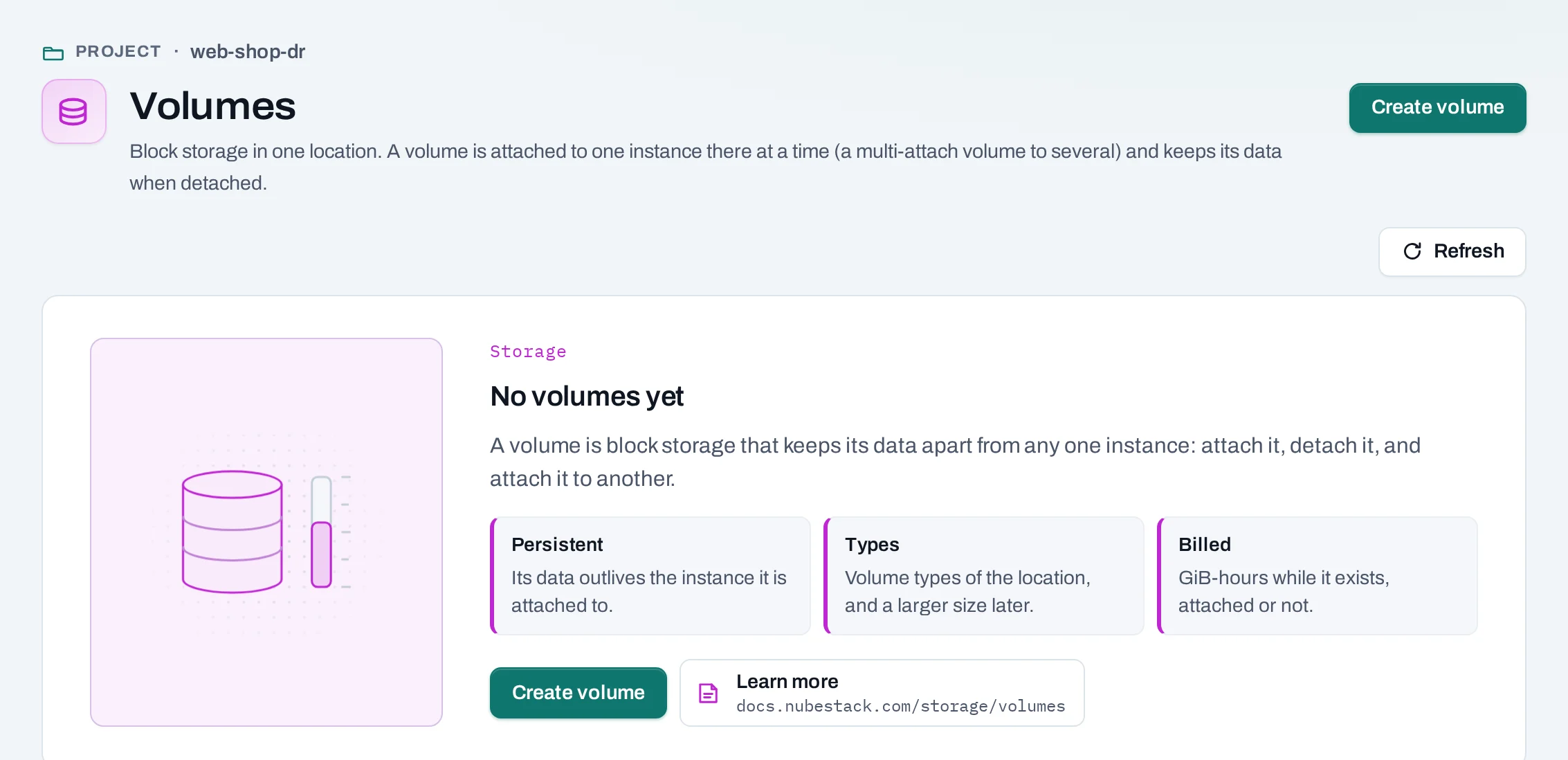
An empty list explains the resource: what it is, three facts about it, and a link to its page in these docs.
Create pages
Creating something opens a page of numbered steps, with a summary on the right. The summary lists what is still to do, and what the project's quota will be afterwards.
- Price estimate: on pages that create something billed (instances, volumes, load balancers, public IPs, image imports), owners, admins and the billing role see the price per hour or per month at NubeStack's current rates. It is an estimate, provisional like all usage and costs.
- Equivalent code: the same change as an API request, a
nexuscommand, Terraform andcurl, made from what the page would send. See NubeStack CLI.
Leaving a page with something entered asks you first.
Follow a change
Creating, changing or deleting something in a location takes a moment. The console accepts the request at once and shows a notice such as Instance requested, with Follow the operation. The operation page shows each step and how the location answered. The project's operations are under Activity. See Operations.
Words the console uses
- Created by: Nexus means NubeStack Cloud's own automation made the resource, for example the network built with a new project. Nexus is the name of the platform NubeStack Cloud runs on.
- outside Nexus marks a resource made with a location's own tools, such as Horizon or the OpenStack CLI.
The glossary explains the other terms.